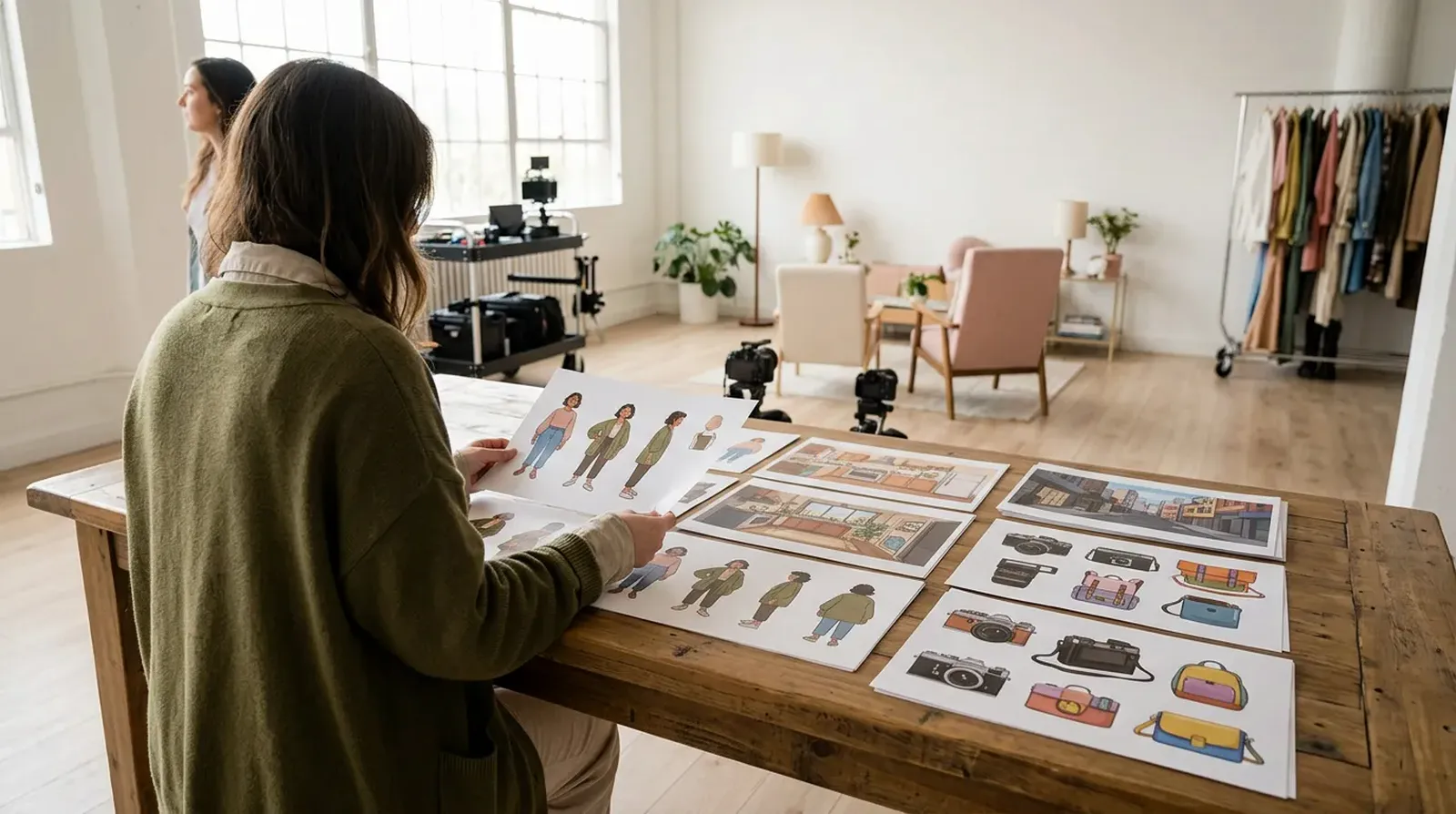
An AI character sheet is one generated image of your recurring presenter or mascot: full body front and back plus a face close-up, on a mid-gray background without text. Save it once and attach it to every run as a labeled reference, so the same face and outfit appear in every still and clip. Set and prop sheets do the same for a place and a product.
If you run a faceless channel or post as a solo creator, your presenter or mascot probably looks like a different person in every TikTok, Reel and Short. Viewers can’t tell the posts come from one channel. An AI character sheet fixes that with one reference you make once and reuse.
The workflow has four parts: you write one sheet prompt, generate the sheet, reuse it in scene stills and 9:16 clips, and check that the face held.
Key takeaways#
- Write the sheet prompt in this order: identity, outfit, views, pose, style, background, so face and clothes are fixed first.
- Make two or three versions of each sheet and keep the one whose panels agree.
- Keep set sheets empty. A person in the set sheet appears in every shot.
- Refer to attached sheets by label (A, B, C) and describe the action, never the face again.
What do you need before you make an AI character sheet?#
Before you make an AI character sheet, you need a one-paragraph character description, an image model that accepts reference images, and a balance to pay for model calls.

The sheet itself is one generated image of the same character from several angles on a plain background. Looptake’s Character sheet template asks for one horizontal image in three equal panels: full body from the front, full body from the back and a face close-up. The same person, outfit and hair appear in every panel, on neutral mid-gray, in soft even light, with no text.
A recurring presenter or mascot only works if viewers recognize it in the first second. Every new prompt copies the same face from the sheet, so a week of TikToks, Reels and Shorts reads as one channel. For channels without an on-camera host, see the complete guide to faceless video content.
Have these ready:
- A one-paragraph description of a fictional presenter or mascot. Include age, hair, one easy-to-spot piece of clothing and one distinctive detail.
- An image model that accepts reference images. The Looptake catalog includes Seedream 5.0 Pro, Nano Banana Pro, GPT Image 2.5 Flare and GPT Image 2.5 Sunburst.
- A place to generate images and clips, and a balance to pay for the model calls.
Reference limits, and the way you supply the images, differ by provider. Check the current limit in each provider’s own documentation before you decide how many views to attach.
Budget one sitting for the sheet, including a retry on any weak panel. After that, you reuse the saved image for every later post.
A location and a product can each get their own sheet. A set sheet shows an empty place with no people. A prop sheet shows the object from a front three-quarter view and a top-down view on mid-gray.
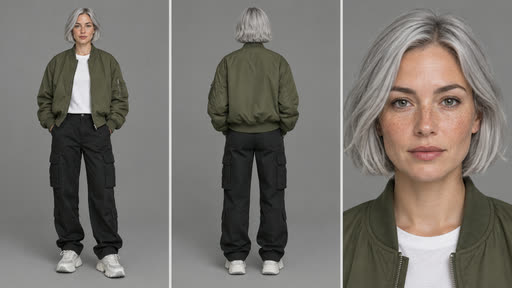

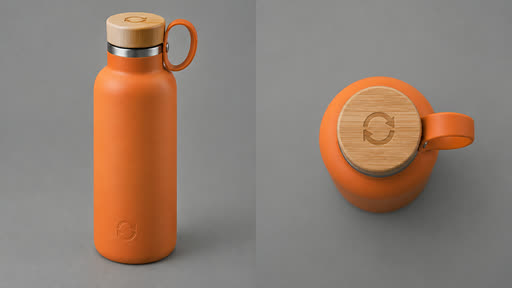
For a coffee-tips channel, three short lines give you one sheet each for the presenter, the place and the cup:
- Casting note: “woman in her 30s, short black hair, mustard apron, small silver ring.”
- Location line: “small cafe counter, morning window light.”
- Product line: “white 12 oz paper cup with a printed leaf.”
If you later want the presenter to speak on camera, see how AI avatars and AI influencers work. For paid social, the guide to AI spokesperson videos for ads covers when a presenter fits an ad.
How to make character, set and prop sheets: step by step#
You make character, set and prop sheets by writing a short description of each, generating one sheet image per description in the Lab, and attaching the saved sheets to every run.
The sheet prompt follows this order: identity, outfit, views, pose, style, background. Here is one for a fictional presenter, Mara, in plain language:
Mara, a fictional woman in her 30s, short bleached hair, a small scar on the chin. She wears an oversized green work jacket, zipped, over a white tee and dark jeans. Character reference sheet in three panels: full body from the front, full body from the back, and a face close-up. Standing straight, arms relaxed, neutral expression. Clean photographic style, soft even light. Plain mid-gray background without text.
Identity comes first so the face is fixed before any layout choice. The outfit comes second because viewers check it second.
A neutral pose keeps arms from hiding the jacket and stops one gesture from repeating in every shot. The plain background stops the model from tying Mara to a place.
- Write the casting note for a fictional character, never a real person: “Mara, 30s, short bleached hair, oversized green work jacket, a small scar on the chin.” The jacket is what the eye checks first in every shot, so name its color, cut and fastening.
- Open the Character sheet recipe in the Lab at /app/lab?recipe=character-sheet. It fills the template. Paste the casting note, pick an image model and run it. You should see one image with three panels of the same woman on gray.
- Make two or three versions and keep the one where the panels agree with each other. A mismatch in the sheet spreads to every shot, so check the face, the scar and the jacket across all panels.
- Make a Set sheet of the empty location, such as a corner cafe. Leave people out. A person in a set sheet teaches the model that the person belongs to the room, and they turn up in every shot.
- Make a Prop sheet of the product. Viewers notice drift in products first: a logo that changes, a cap that becomes a lid. Check that the label and the shape match in every panel.
- Save the three sheets to Cast & Sets for the workspace. They now appear as options in every later run.
- Attach them to a run. They arrive as labeled references A, B and C, and the prompt uses the labels: “A walks into B at closing time, picks up C from the counter and smiles at the lens.” Don’t describe Mara’s face again.
- Use the Director’s continuity field for what references can’t say: “The jacket stays zipped. C is in her left hand.” The clip should keep both details from the first frame to the last.
- Upload a short recording as a voice reference if the character talks. The cast then speaks in that voice.
- Render 9:16 clips in the Video tool and check each clip against the sheet. Keep the script near 50 words for a 20 second clip.
Video models in the catalog take up to 4 references, so a character, a set and a prop leave one slot spare. Image models take more: Seedream 5.0 Pro and Nano Banana Pro take up to 14, and GPT Image 2.5 Flare up to 16, which covers a larger cast.
Make scene stills in the Image tool (/app/lab?mode=image) before the clip. Attach Mara’s sheet, and describe only the action and the location.
Pick the stills you like as start frames for the Video tool, then add word-timed captions with the Caption tool. To give the clips a visual look that matches the sheet, name the style once and reuse it in every prompt.
If the same face must run across many posts, use Influencer mode in the Lab or Presenters for a consistent AI face. To go from one sentence to a finished short, try the AI video generator. You can make your first video with Mara’s sheet attached as reference A.
Common AI character sheet mistakes and how to avoid them#
Most AI character sheet mistakes are face drift, outfit changes, color casts, garbled text and too many references, and each has a fix you can apply on the next run.
-
Faces change between shots. Attach the character sheet as a reference on every run and paste the casting note word for word. Rewording the note gives the model room to invent a new nose. When it works, the face in shot five matches the face in shot one.
-
The outfit changes from clip to clip. Write one outfit sentence and reuse it word for word in every prompt. Put the same sentence in the continuity field so each run starts from the same description.
-
A person from the set sheet shows up in every shot. Generate the set sheet as an empty location only, since anyone standing in the sheet gets carried into each shot that uses it.
-
Skin and fabric colors shift. A white or black sheet background tints the colors the model reads from the character. Regenerate the sheet on a mid-gray background, then check that the skin tone and fabric look the same in a new still.
-
Text or logos change on the product. Make a prop sheet and write the exact printed text in the prompt, in quotation marks. Add titles and logos as overlays after the clip is rendered, so the video model never has to draw letters.
-
Too many references are attached. Limit each run to four. Pick the ones the shot needs: the front view for a face-on shot, the back view for a walk-away, the prop sheet only when the product is in frame.
-
A sheet with panels that disagree stays in use. Generate two or three versions and keep the one where the face, hair and outfit match in every panel. If one panel is weak, such as the back view, make a new version of the whole sheet.
How to check that your AI character sheet worked#
You check an AI character sheet with seven quick tests, each with a clear pass, and the whole routine takes a few minutes.
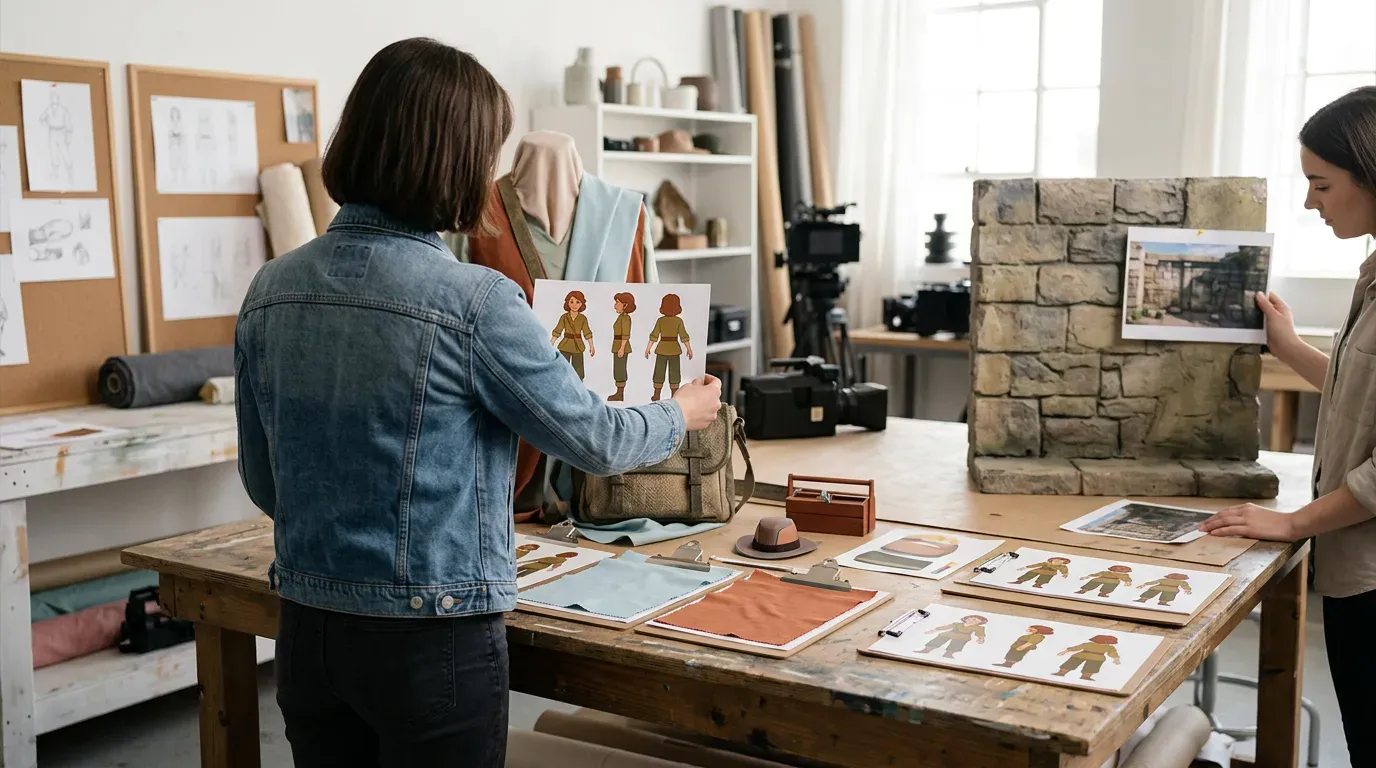
- Compare the face in every panel. Look at the front view, the back view and the face close-up. A pass is the same hair, hairline and skin tone in each one, and the same eyes and nose in the front view and the close-up. If a panel drifts, make another version of the sheet.
- Compare the outfit and color palette panel to panel. A pass is the same garment, the same colors and the same accessories in every view, with no tint across the sheet.
- Check the layout. Zoom in on each panel. A pass is three clean panels with thin gaps, with no garbled text or stray letters.
- Open the Lab and run the same sheet prompt on two models, for example Nano Banana and GPT Image 2. Judge both results on the face, the outfit and the layout from tests 1 to 3. Save the sheet that passes the most as your reference.
- Generate one scene still with the sheet attached as a reference. A pass is a face and outfit in the still that match the sheet.
- Check the vertical output. A pass is a 9:16 frame with the whole face inside it, nothing cut at the forehead or chin.
- Count the script words before you voice it. Use a rule of thumb of 150 words a minute: 150 x 20 / 60 = 50 words for a 20 second clip. A pass is a script close to 50 words.
If a test fails, fix that step and run it again. Tests 1 to 3 fail most often and cost the least to repeat, so run them before you spend credits on stills or clips.
Once all seven pass, the same sheet is ready for every post that features the character.
Frequently asked questions#
How do I keep the same character across AI videos?#
Make one character sheet, save it to Cast & Sets, and attach it to every run as a labeled reference. Repeat the same outfit wording in every prompt, and use an approved still as the start frame for each clip, so the face and outfit carry into the video.
How many reference images can I attach?#
Video models in the Looptake catalog take up to 4 references. Image models take more: Seedream 5.0 Pro and Nano Banana Pro up to 14, GPT Image 2.5 Flare up to 16. Attach only the sheets the shot needs.
What if the face still drifts in a clip?#
Check that the sheet is attached to that run and that the prompt calls the character by its label. Repeat the outfit sentence word for word, and put the details references can’t show in the Director’s continuity field. If the sheet’s own panels disagree, make a new version of the sheet first.
Why make a set sheet without people?#
An empty set sheet shows the room or location with nothing to compete with your character’s face. Attach it as a second reference beside the character views, and name the camera angle in the prompt. The background then stays the same from clip to clip.
Next steps for your AI character sheet#
Today, write the identity line: one sentence covering face, hair, age and outfit. Generate your AI character sheet from it. It worked when the front, back and close-up panels show the same person on a plain background.
This week:
- Save the character, set and prop sheets to Cast & Sets.
- Make five scene stills, repeating the same outfit wording in each prompt.
- Turn one approved still into a 9:16 clip, then add a voiceover and captions. Keep the script near 50 words for 20 seconds.
Before each post, run the seven-test check on the face and outfit.
When the sheet and the checks are ready, make your first video with Looptake and attach your references to the first run. Compare the face in the finished clip with your sheet before you post anything.