AI motion transfer takes two inputs, a character picture and a clip of one person moving, and returns a video of your character doing that move. The clip supplies the motion and timing, and the picture supplies the look. The result depends on three choices: the reference clip, the video model that runs it, and the AI label you add before posting.
This is for faceless channels, small brands and online shops with a mascot or illustrated character that never moves. You want it to dance or make a presenter gesture without appearing on camera or hiring an animator.
After reading, you can make a 9:16 clip of 5 to 15 seconds for Shorts, Reels or TikTok, price it before you run it, and post it with the right AI label.
Key takeaways#
- Clean reference footage decides most results: one performer, one continuous take, a steady camera and bright light.
- Per Looptake’s Lab documentation, Seedance refuses a picture or clip that may show a real person. Use a stylized character or Wan 3.0.
- Draft on the cheapest tier, compare models, and pay for a higher tier only on the clip you keep.
- A mascot can demonstrate a product but can never speak as a real, satisfied customer.
What you need before you start AI motion transfer#
AI motion transfer needs two inputs: a picture of one character and a clip of one person doing the move.

Related tools work differently. Image-to-video invents motion from a prompt, face swap replaces only a face, and motion capture records a performer with special equipment.
The “Everybody Dance Now” paper (Chan et al., ICCV 2019) describes “do as I do” motion transfer: it takes a source video of a person dancing and transfers that performance to a different person.
Wikipedia defines motion capture as “the process of recording the movement of objects or people”. That needs a real performer and recording gear. Motion transfer needs only an ordinary video of one person moving.
Prepare these two files:
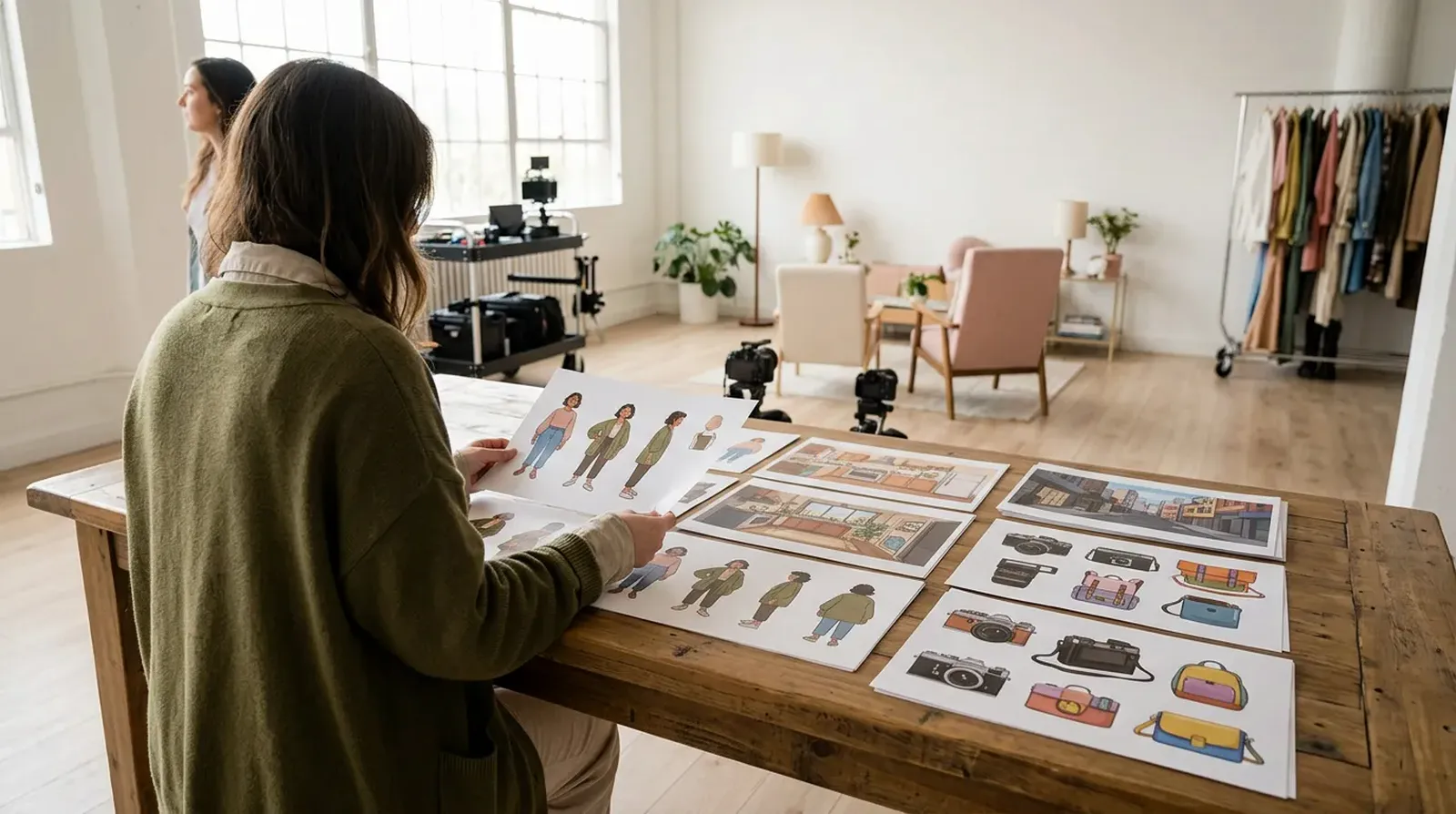
- A picture of one character, with the full body visible if the move uses the whole body. For a character you reuse, see the guide to character set and prop sheets.
- A clip of one person doing the move.
Pick the tool#
- Remix in Motion mode replaces the whole character and keeps the moves.
- Face swap changes only the face and leaves the body as it is.
- Remix in Swap mode replaces one thing in the clip. See how to swap or restyle an AI video.
- Make a short, Looptake’s AI video generator, has a Motion clone format that does the same job inside a finished short.
Input limits by model#
According to Looptake’s Lab docs, Remix runs on models tagged remix: Wan 3.0, Seedance 2.0 Mini and FLUX Video Edit. Motion mode is for video models only. Other models set different clip limits, so check the row for the model you choose.
| Where | Documented limit | Source |
|---|---|---|
| Remix, Motion mode | Source clip up to 30 seconds, and no longer than every chosen model makes. Output is as long as the source | Lab docs |
| Wan 3.0 | “Long takes up to 30 seconds with sound” | Model page |
| Seedance 2.0 Mini | Clips of 4 to 15 seconds. Refuses a picture or clip that may show a real person | Model page, Lab docs |
Models also refuse known characters and brands. A refused item fails with the reason and is refunded in full.
How to do AI motion transfer: step by step#
AI motion transfer in Looptake takes eight steps, from filming the reference clip to posting the finished video, and each step ends with what you should see.
-
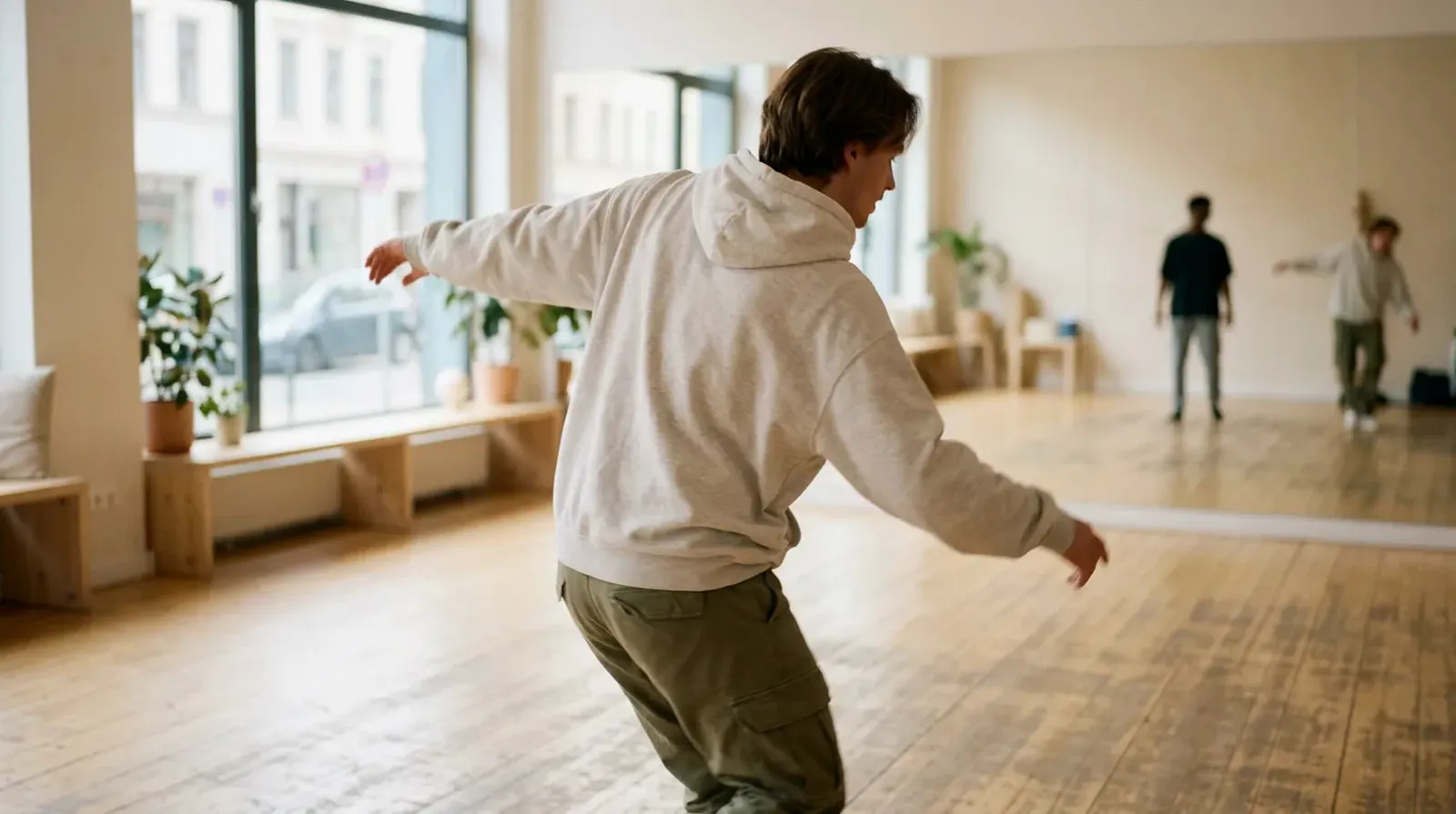
Film one performer, full body in frame for a dance. Use a steady camera, no cuts, a plain background and good light, and keep it to 8 to 15 seconds (never past 30).
Shoot vertical (9:16) so the performer fills the frame. You should see head to feet in every frame, with no limb hidden behind furniture.
-
Prepare the character image in the same pose as the first frame of the clip. Show the whole body if the clip does, on a plain background, in clothes that move, such as a jacket, skirt or scarf.
For turns, add a character sheet with front, back and face. You should see a figure that could swap places with the performer at second zero.
-
Open Remix in the Lab, choose Motion mode, upload the clip and image, and run Wan 3.0. Run Seedance 2.0 Mini with the same two files. You should get two clips of your character making the same move.
-
Add optional direction in the prompt box, such as “in a neon arcade at night” or “locked-off camera”. Change one phrase per run. You should see the background change while the move stays the same.
-
Compare the Wan 3.0 and Seedance 2.0 Mini results side by side. Keep the version where the hands and feet match the reference. You should see which model drops fingers or slides feet.
-
Draft at the cheapest tier, then finish only the keeper at a higher tier. You should see a small draft bill and one finished clip.
-
Work out the cost before each run. A remix is quoted at the tier’s rate for the seconds made plus the seconds read, according to Looptake’s Lab documentation. Read the per-second rate on the model page.
If the model page shows 10 credits per second and your clip runs 12 seconds, the job bills 12 + 12 = 24 seconds. That is 24 x 10 = 240 credits.
Looptake’s pricing page states: “You see the price before you run, and a failed run costs nothing. Credits never expire. Top up from $5.”
-
Finish for posting. Add word-timed captions with the Caption tool, a voice with Speech and a track with Music, and use Reframe if the clip isn’t 9:16.
You should see captions landing on each spoken word and a clip that fills a vertical screen.
Moves that suit 5 to 15 second vertical clips include dance loops, a wave and point, a presenter gesture, a product hold and a runway walk. For what keeps viewers watching past the first second, see the viral content principles.
Common AI motion transfer mistakes and how to avoid them#
Most AI motion transfer failures come from the reference clip or from a mismatch between the clip and the character picture, and each has a fix you can apply before the next run.
- Arms or legs break on a fast move. You see smeared limbs or extra fingers, because motion blur in the source gives the model no clear limb position. Use a slower source or a shorter part of it, and film in bright light.
- A hand or limb vanishes behind the body. The limb flickers or snaps back into place because the model can’t see it in the clip. Refilm with the performer facing the camera, or pick a move that keeps both arms in view.
- The reference has frequent cuts or camera moves. The character jumps between poses or the background drifts, since each cut resets the pose and a moving camera reads as body motion. Use one continuous take from a steady source, or add “locked-off camera” to the prompt.
- The performer’s proportions don’t match the character’s. A large mascot head sinks into the shoulders, or short legs slide across the floor, because the clip’s limbs are longer. Choose a move with smaller arm swings and less footwork, or use a character with closer-to-human proportions.
- The character image is cropped at the knees but the clip shows the full body. The model invents legs, and they change from frame to frame. Use a full-body picture, or reframe the clip to the waist up.
- The clip is longer than the model’s limit. The job is rejected or cut short. Read the documented limit for the model you chose, then shorten the clip with the Trim tool.
- The reference has more than one person. The character copies the wrong person or blends two. Crop to one performer, or refilm with a single person in frame.
- The character’s pose is far from the first frame of the clip. The first second warps as the character snaps into the starting pose. Cut the clip to begin where the performer’s pose is close to the picture, or redraw the character in a similar stance.
- The character changes between frames. The face, outfit or colors drift during the move. Give the model a character sheet (front, side and back views of the same design) in place of a single picture.
What to retry, in order#
Retry in this order and change one thing per run, so you know which change fixed the clip.
- Shorten the clip.
- Simplify the motion.
- Match the framing of the image and the clip.
- Try a second model in the Lab.
If one model fails or refuses your character, run the other. Looptake’s FAQ says a failed job costs nothing and its credits go back to the balance, so a retry costs only the next successful run.
How to check that it worked#
Seven checks on the finished clip tell you whether the AI motion transfer worked, and each has a result you can see on screen.
- Pause the clip at the start, middle and end. The face, outfit, colors and body proportions should match your character picture. If the outfit or head shape drifts, retry with a clearer full-body picture.
- Zoom in on hands and feet at the fastest part of the move. You should see the right number of fingers and feet that land without sliding. Smeared limbs mean the reference move was too fast, so retry with a slower take.
- Play the reference and the result side by side. Each arm raise, turn and step should land on the same beat in both.
- Check the 9:16 framing. The whole character should sit inside the frame, clear of the edges and of the area where captions will go. If it doesn’t, use Reframe in the Lab.
- Add the voiceover, captions and music, then watch with sound on. Every caption should be readable and in sync with the voice. The Caption tool in the Lab adds word-timed captions to a clip.
- Switch on the AI-content label in each app’s upload screen. TikTok, YouTube and Meta each publish their own rules: TikTok’s post on new labels for disclosing AI-generated content and YouTube Help’s page on disclosing altered or synthetic content cover the first two.
- Confirm you have the rights to the reference footage. Use your own clip, a performer who agreed to it, or footage you hold the license for.
Rules behind the last two checks#
The last two checks exist because another person’s movement appears in your result, and because platforms and the FTC set rules for AI content and endorsements.
Another person’s video needs their permission, since their movements and body show up in your clip. Don’t make a clip that passes for a real, named person. A mascot, product character or illustrated character avoids that problem.
For Facebook and Instagram, read Meta’s post on labeling AI-generated content and manipulated media.
The workflow for a faceless channel or small brand has six steps:
- Film yourself or a hired performer, who agrees in writing.
- Pick your mascot image.
- Run the motion transfer.
- Record or generate a voiceover.
- Add captions.
- Turn the AI label on.
For more formats that suit this setup, see the complete guide to faceless video content.
A generated character is never a real customer. The FTC announced a final rule banning fake reviews and testimonials, so a mascot can’t say “I bought this and it worked for me.” It can introduce the product, demonstrate it or read a script that you label as a brand message.
Frequently asked questions#
How long can the source video be in Remix?#
Remix takes a source clip of up to 30 seconds, and no longer than every chosen model makes, according to Looptake’s Lab documentation. Seedance 2.0 Mini makes clips of 4 to 15 seconds, so with it in the run, keep the source to 15 seconds.
Can I use a video from someone else as the source?#
Use a video only if you filmed it, or if the performer and the rights holder agreed. The character copies the performer’s movement, and a choreographed routine is someone’s work. Never make a real person look like they endorse your product.
Do I have to label AI motion transfer videos?#
Label the video as AI-generated when you post it. Switch on the AI-content label in the TikTok, Instagram or YouTube posting screen if it offers one, and never show a generated character as a real customer or testimonial.
Can I change the place or the camera with a text prompt?#
Yes. In Motion mode, a short prompt adds direction, such as the setting or how the camera moves. The reference clip still controls the body movement and timing.
How much does one clip cost?#
Add the seconds made and the seconds read, then multiply by the tier’s rate per second from the model page. On Looptake’s pricing, 1,000 credits are $1.
If a model charges 10 credits per second, a 10 second clip from a 10 second reference is (10 + 10) x 10 = 200 credits, or $0.20.
Make your first motion transfer clip#
In the next 10 minutes, film or pick one reference clip: one performer, full body in frame, steady camera, no cuts, even light. Save a full-body image of your character in the same 9:16 shape.
Today, open Remix in the Lab and run that clip and image on Wan 3.0 and Seedance 2.0 Mini. Price each run first: add the seconds made and the seconds read, then multiply by the rate per second. Keep the result with steadier hands and feet.
Before you post, confirm the character looks the same from first frame to last, the hands and feet show no artifacts, you hold the rights to the reference footage, and the AI label is on.
Make your first video with one reference video and one character image, then compare the two results.
Sources#
Everybody Dance Now · Motion capture - Wikipedia · TikTok: new labels for disclosing AI-generated content · Meta: labeling AI-generated content and manipulated media · FTC: final rule banning fake reviews and testimonials