Image to video AI turns one still into a short clip: the image becomes the first frame, and a prompt describing one action moves it. Prepare a clean 9:16 still, write a prompt about motion only, generate, then compare the clip with the source and keep it or redo it.
Image to video AI often returns a good product photo, portrait or illustration with a warped label, extra fingers or a different face. Comparing the clip with the source frame catches those changes before you post.
By the end you can prepare a still, prompt one action, run a drift check and turn the clip you keep into a vertical short. In Looptake, the Video tool in the Lab starts from your frame, and Make a short adds the hook, script, voiceover, captions, music and a schedule.
Key takeaways#
- Big camera moves make the model invent content the source never showed.
- A 5 second clip fits one action and a spoken line of about 12 words.
- Drift grows over the clip, so judge the last frame against the source.
- Add readable text afterward with the Caption tool, because small text in a still warps.
What you need before you start#
Before you generate, you need a clean still in the right frame, its flaws fixed, and credits on your Looptake balance.

Choose the still#
Pick an image with one clear subject. Leave empty space on the side the subject or camera will move toward, so the model has real pixels to reveal.
Set the aspect ratio before you make or crop the still. For vertical feeds that is 9:16, and the guide to AI video aspect ratios covers the other formats.
Then check four things:
- The image is sharp and clean. Blur, noise and compression blocks move with the subject.
- It has no small text. Video models redraw text in each frame, and small text warps.
- The subject is in its start pose: crouched for a jump, bottle tilted for a pour.
- Any real person in it has given consent to the use of their photo.
Fix the image first#
Repair the still with the Looptake Lab tools before you animate it. Each tool returns a new version of the still, so check it before the next step:
- Run Remove background on a cluttered product shot. You get the subject on a transparent PNG.
- Run Expand to extend a photo to a new frame, such as 9:16.
- Run Relight on flat light.
Upscale and Reframe work on video, so use them on the finished clip.
If you have no photo, the Image tool makes a still from a prompt or a reference. The guide to prompting realistic AI photos shows how to write that prompt.
Example: a bottle on a cluttered counter#
Start from a landscape product photo of a bottle with a dish rack and a toaster beside it. Run Remove background to get the bottle alone.
Extend it to a 9:16 frame with Expand, and leave open space on the right, where the camera will drift. Check that the label is sharp. You now have a still where only the bottle can move.
Cost#
Looptake’s FAQ says credits pay for every model call, and that scheduling, posting, editing and analytics use none.
On price, 1 credit is $0.001, and you see the price before you run (Looptake pricing).
How to use image to video AI: step by step#
Image to video AI takes six steps: prepare the still, write a one-action prompt, set 9:16, pick a model, compare results, then generate and review.
-
Open your prepared still: one clear subject, empty space in the direction of movement, and a 9:16 frame. It is ready when you can point to the subject and to the space it will move into.
-
Write a one-action prompt with this formula: subject + one action + one camera move + what stays still. Describe motion only, because the image already shows the subject. Useful action verbs are lifts, turns, drops, blinks, sways and drifts. Useful camera moves are zoom in, slow push in, pan left, tilt up, hold and loop. Three examples:
- Product shot: “The lid of the glass jar turns and lifts. Slow push in. The label, the jar and the table do not change.”
- Portrait: “She turns her head toward the window and smiles slightly. The camera holds still. Her face, hair and the room do not change.”
- Illustration: “Wind moves the grass and the clouds drift right. Slow pan right. The painted style and the colors do not change.”
For a prompt written from text alone, see the eight-part guide to AI video prompts.
-
Set the aspect ratio to 9:16 and the length to 5 seconds. A 5 second clip fits one action. You should see a vertical preview before you generate.
-
Pick two or three models. All 26 video models in the Looptake model catalog take a first frame, and each model page lists its lengths, resolutions and whether it makes sound. Pick models that fit a 5 second clip.
-
Load the still as the first frame in the Lab, paste the prompt and run it on two or three models. You get one clip per model from the same image and prompt. Check each clip for:
- Face and hands: same face, five fingers.
- Logo and text: letters stay sharp and in place.
- Motion: the clip does what the prompt says, and nothing more.
- Background: nothing appears that the still never showed.
-
Generate the winner in the Video lab tool, which makes clips from a start frame. Compare the first and last frames of the clip with your source, then keep it or redo it. To redo, restate the stable parts in the prompt (“the logo does not change”), shorten the camera move or switch model.
Add a last frame for loops and set endings#
Use a last frame when the clip must end on a set image. Examples are a sketch first and the finished painting last, a closed box then the product on the box, or the same image as first and last frame for a loop.
Pick a model that takes a last frame. Every catalog video model does except Grok Imagine Video (all three), HappyHorse 1.0 and 1.1, Wan 2.6, HeyGen Video, Hailuo 2.3 and Gen-4.5. The two frames must be able to connect within the clip’s length, so give a move across the frame 5 seconds or more. The guide to looping AI video covers loops in full.
Turn the clip into a short#
Make a short turns the clip into a post: it adds the hook, script, voiceover, captions and music, then schedules it. It builds a finished 9:16 video from one sentence (how the AI video generator works).
Check the pacing first. Take 150 words per minute as a rule of thumb: 5 x 150 / 60 gives about 12 spoken words for a 5 second clip.
A line such as “This jar opens with one twist and keeps your coffee fresh” fits. A 30 word script on that clip would rush. Keep the line near 12 words. For a longer line, use Join clips, which joins up to 10 clips over a track.
To run steps 5 and 6 on your own still, make your first video and start from the Video lab tool.
Common mistakes and how to avoid them#
The common image to video mistakes fall into two groups: six in the still or the prompt, and three in how you use the clip. Each has a fix you can apply before the next generation.
-
You ask for an orbit or a big pull-back. The model has to invent whatever the still never showed, such as the back of a bottle or the room behind a person. Ask for one small move, like a slow push-in or a short drift, which stays inside the frame. If you need a wider view, run Expand on the still first, so the extra space exists before the clip starts.
-
You describe the subject instead of the motion, or you ask for two actions. Words about the subject add nothing the image does not show. Write what moves, for example “steam rises, the camera pushes in slowly.” Two actions in 5 seconds both come out rushed, so keep one.
-
You generate at the wrong ratio and crop later. A still in the wrong ratio gets cropped or extended, and you lose the framing you chose. Run Expand on the still to reach 9:16 first, then check that the subject still sits where you want it.
-
You animate a flat, soft or cluttered image. Motion shows every weakness in the still. Run Relight or Remove background before you generate.
-
Your still has small text, or the subject touches the edge. Leave small text out and add the words afterward with the Caption tool. A subject at the edge has no room to move toward the motion, so Expand the frame or pick another still.
-
You expect a photo to speak. A face that says your audio is a separate job: use Lipsync, which makes a talking photo, and follow the guide to making a photo talk. A still-to-motion clip is also the wrong tool when the subject must turn fully around, or when you want a different scene. Generate a new image for those.
-
You animate a photo of a real person without permission. Get the person’s consent, and make sure you hold the rights to the image, before you generate anything from it.
-
You post the clip without an AI label. Each platform sets its own rules for labeling AI-generated content, so read them before you publish: TikTok’s post on labels for AI-generated content, Meta’s approach to labeling AI-generated content and YouTube’s page on disclosing altered or synthetic content.
-
You show a generated person as a real customer. A generated face is not a customer, so never present it as a testimonial, a review or a real result. Use a generated person only as a presenter, and say so where the platform asks for a label.
How to check that it worked: the drift check#
A drift check compares each clip with your source still, first at frame 1 and then at the last frame.
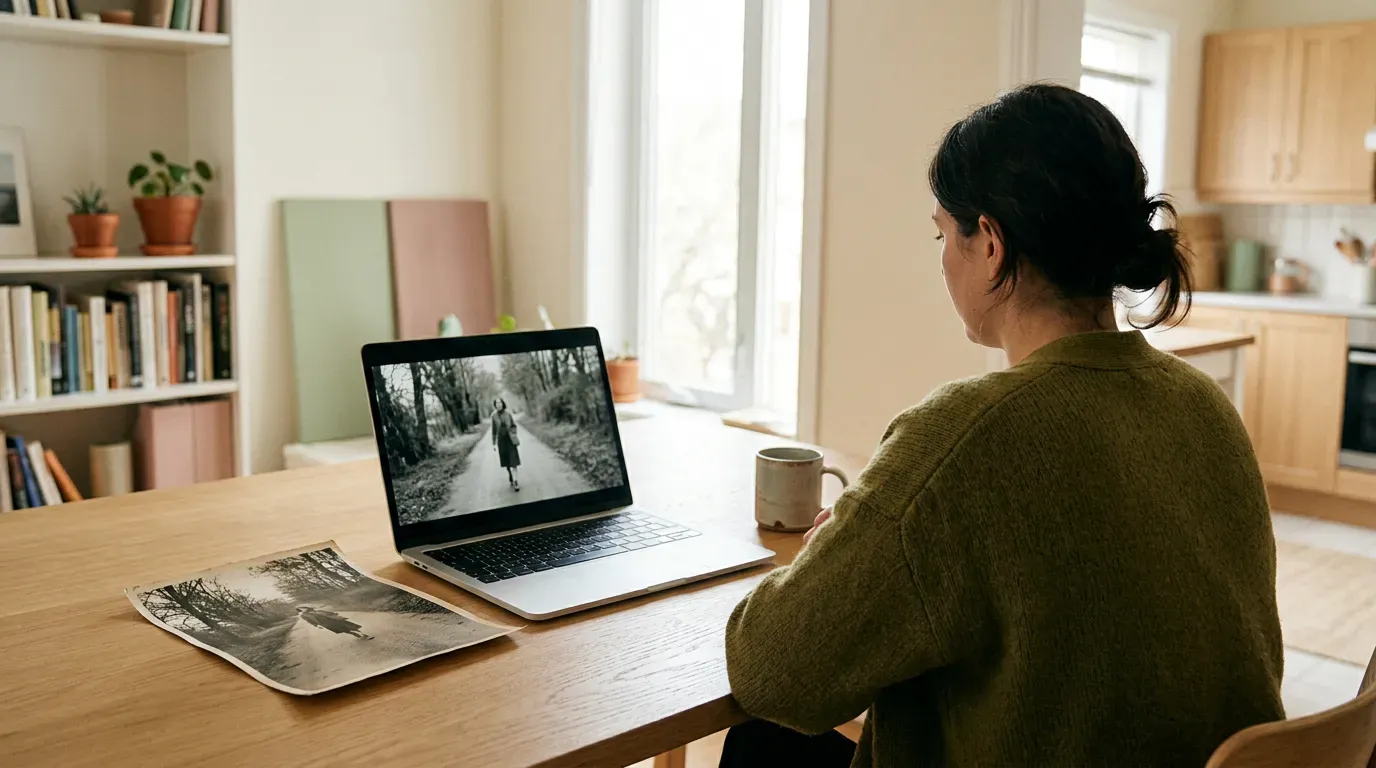
- Pause the clip on its first frame and put the source still next to it. The two should look identical.
- Compare faces. Check face shape, eye position, skin and hair. It worked if you would say it is the same person.
- Compare hands and fingers. Count the fingers and check that each joint bends the right way.
- Compare logos, small text and labels. Text is the first thing to warp, so look at the smallest line you have.
- Compare product geometry. Check that edges stay straight and that the proportions, cap and handle shapes match the still.
- Scrub to the last frame and repeat steps 2 to 5. Drift grows with time, so a clean first frame says little about second five.
- Decide. Keep the clip only if every item still matches at the last frame. Otherwise redo it.
On a bottle shot, the label might read cleanly on the source still while the small print blurs by the last frame. Add “the label stays sharp and unchanged, the bottle shape does not change” to the prompt. Swap the pan for a slow push-in, regenerate and run the check again.
When the same fault repeats, change the prompt or the move first. A seed fixes the random start, so keep it while you test one change at a time, and switch it when the fault persists. The guide to what a seed does and when to keep it covers the details.
If text must read, add it afterward with the Caption tool in the Lab, which puts word-timed captions on your clip. For text inside images, see how to get readable text in AI images.
Check the format last. Confirm the clip is 9:16 and matches the current upload spec of the platform you post to.
Frequently asked questions#
What is image to video AI?#
Image to video AI is a model that takes one still image as the first frame and a short prompt describing motion. It generates a short clip that continues from that frame.
How long can an image to video clip be?#
Clip length depends on the model. In the Looptake catalog it runs from 1 second on Grok Imagine Video to 30 seconds on Wan 3.0 and Seedance 2.5, and each model page lists its range. A still holds up best in a short clip, so start at 5 seconds.
Do I have to label a video made from my photo?#
Labeling depends on each platform’s rules. TikTok, Meta and YouTube each have their own AI-content label or disclosure setting, and their help pages say when it applies.
Why does the face change in my animated photo?#
The face changes because the model drifts when the move is big or the clip is long. Shorten the move, restate the stable elements in the prompt (same face, same jacket, same logo) and regenerate. Then run the drift check again.
What does a failed generation cost?#
A failed generation costs nothing. Looptake’s FAQ says a failed job’s credits go back to your balance.
Next steps: from one still to a posted short#
Today, pick one still and fix its main flaw with Remove background, Relight or Expand. Then write a prompt with one action, such as “slow push in, steam rises from the cup.”
This week, run the same still and prompt through several models in the Lab, and run the drift check on each clip. Open Make a short and add the hook, script, voiceover, captions and music to the clip you keep. Keep the script near 12 words per 5 seconds, then schedule the 9:16 short.
Ongoing, keep a note of each prompt and model that kept the source intact, and the seed where the model takes one.
The Looptake pricing page says “Credits never expire. Top up from $5.” Make your first video from one still and one action.