To make a photo talk, start with one front-facing portrait with a visible mouth, add a voice track (typed text turned into speech, or your own recording), and run them through Lipsync in the Looptake Lab (‘A face that says your audio’), which uses Avatar IV (HeyGen). Play the result muted, then with sound, export at 9:16, and switch on the platform’s AI label before you post.
You have one portrait and one line you want it to say, as a 9:16 clip for TikTok, Reels or Shorts. The portrait might be a brand mascot, a founder headshot, an illustration of a person, or a photo you have permission to use.
Key takeaways#
- Looptake plans scripts at about 150 words per minute, close to the 150 to 160 words per minute recommended for audiobooks. At that pace a 15 second clip holds about 37 words and a 30 second clip about 75.
- Model calls cost credits, a failed job costs nothing, and editing and scheduling use none.
- A talking photo is a generated performance. Never show it as a real customer or testimonial.
- Test the line in a cheap text-only format first, then render the talking photo.
What do you need before you make a photo talk?#
Before you open Lipsync, you need a usable photo, a clean voice track, permission to use the face, and a look at the cost. Tick them off in this order.
The photo#
- One face, looking at the camera, with the mouth visible. A hand, mic or scarf over the lips breaks the result.
- Even light, with no hard shadow across the mouth.
- Sharp lip edges at 100 percent zoom. If they melt into the skin, pick another photo.
- Mouth closed or relaxed. A wide open mouth fights every word.
- Eyes visible, head and shoulders in frame, with space above the head.
For a drawn, 3D or animal character, pick an image where the mouth is clear. For a pet or character portrait, follow our guide to talking animal videos.
The voice#
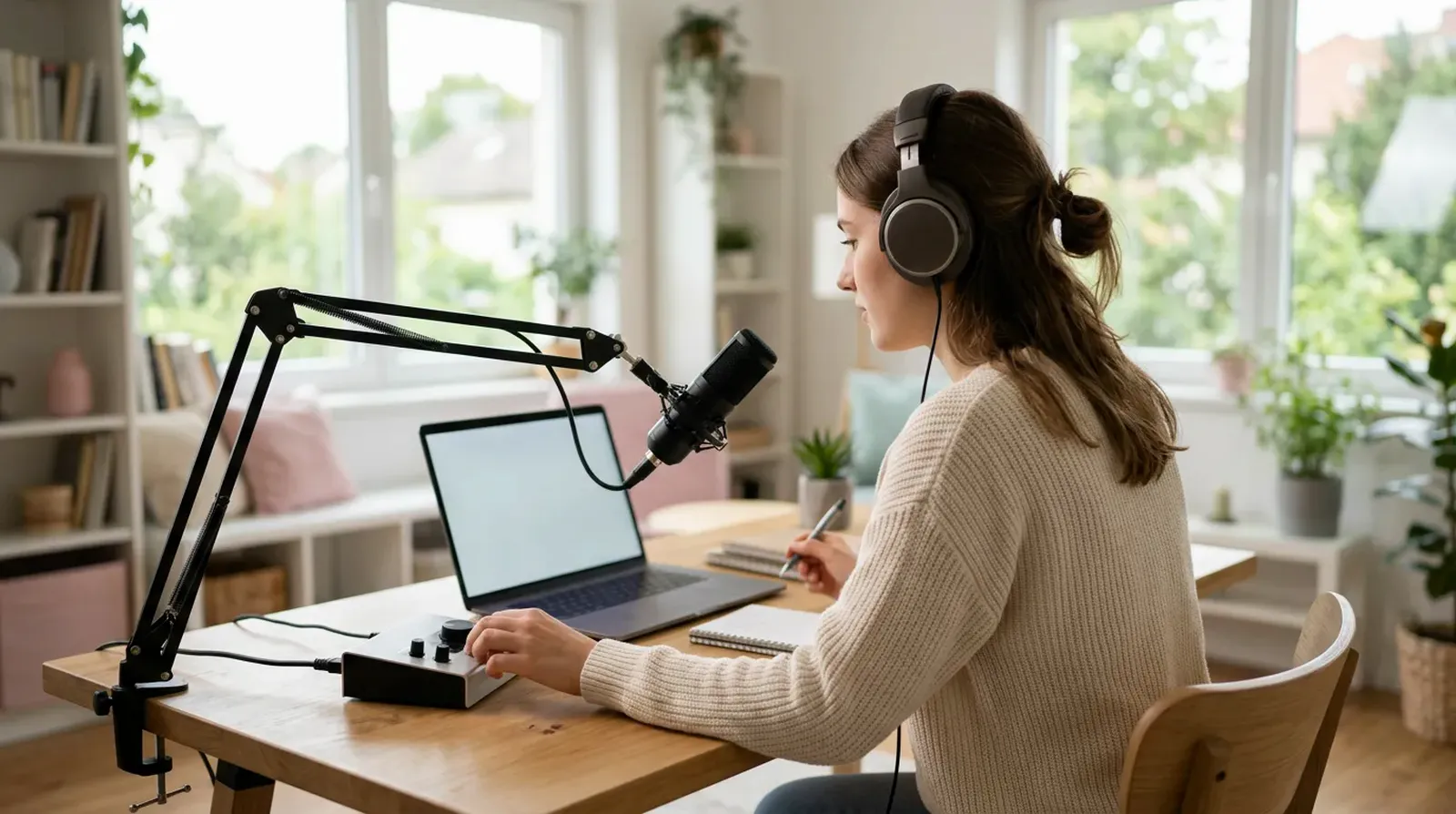
Typed text-to-speech fits a fixed line, a consistent brand voice, a quick draft, or a language you don’t speak. Your own recording fits your own voice, a personal message, or a delivery you want to control.
In the Lab, Speech turns a script into a voice (see how to pick an AI voice). Voice change plays your recording back in another voice.
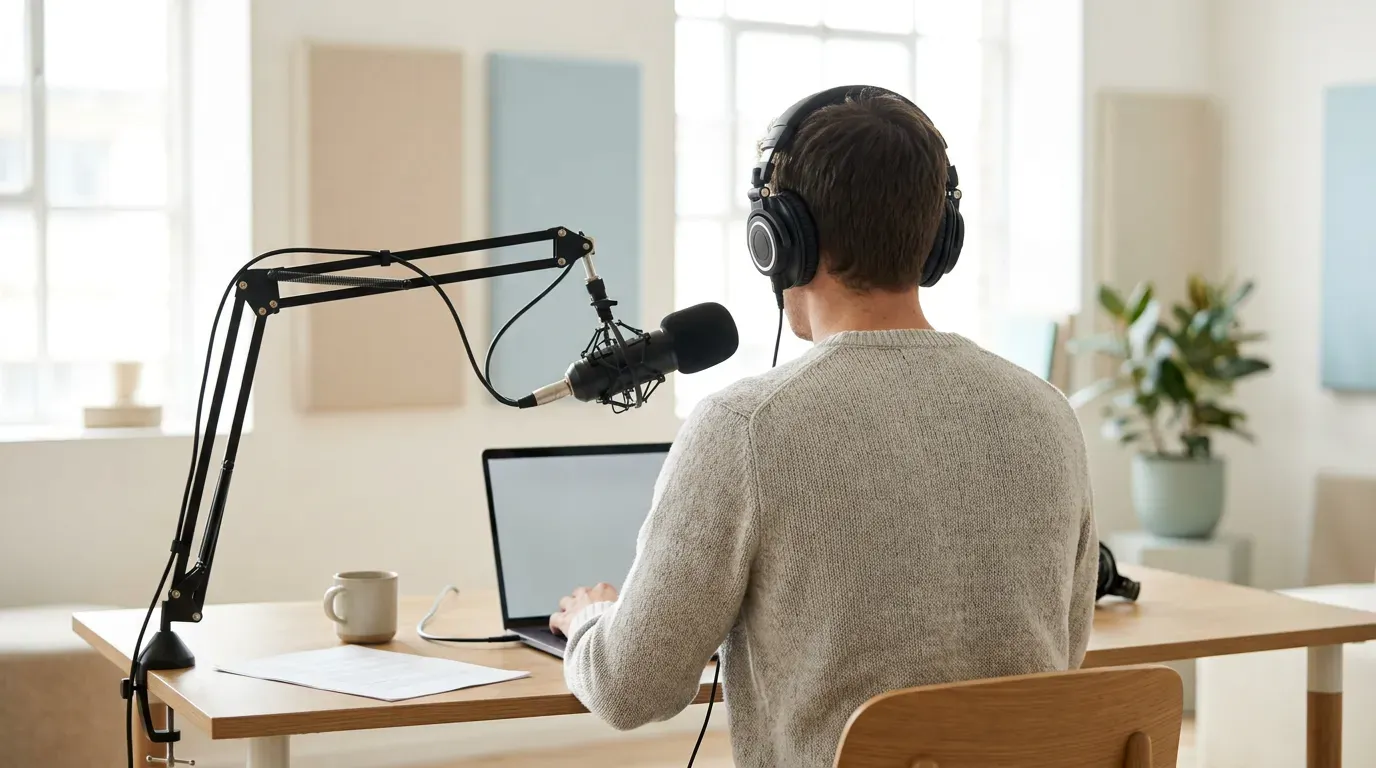
Clean audio gives clean lips. Use one speaker, no music under the voice, no echo, and natural pauses between sentences. The face rests in the pauses.
What Lipsync takes#
The Lab docs say Lipsync makes a portrait speak a recording of 1 to 120 seconds, and it runs on Avatar IV. In place of a recording you can send a script of up to 1,800 characters.
A short motion direction such as “Talk to the camera, small natural nods.” steers the head.
Permission#
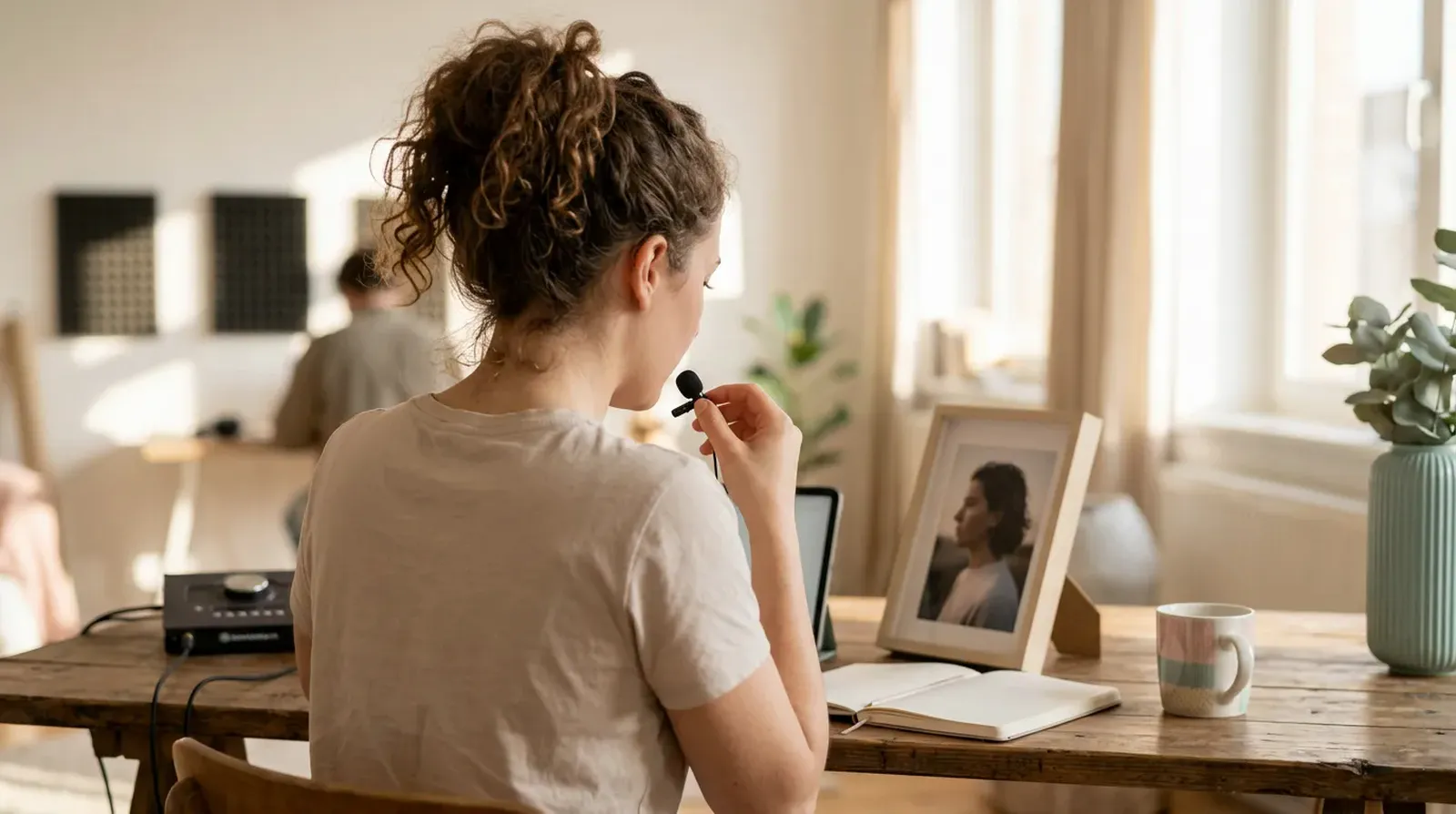
You need the right to use the face in the photo. A photo of a relative needs the person’s consent, or their family’s if they can’t give it.
The cost#
Looptake’s pricing page says: “You see the price before you run, and a failed run costs nothing.” Check current rates there before you render.
How to make a photo talk: step by step#
You make a photo talk by giving Lipsync one clear face and one clean audio track, then finishing the result as a captioned 9:16 post.
-
Crop the photo so the face fills a good part of the frame, set to 9:16 for shorts. A tight crop gives the model more pixels of mouth to work with. You should see one clear face, eyes toward the camera, with sharp lips.
-
Post the line as a Wall of text video first. Try two or three wordings, compare how long viewers stay, and keep the version that holds attention. The talking photo then goes to a line that already works.
-
Cut the line to fit the clip length you want. Write short sentences with one idea each, and use words that show on the lips (p, b, m and o shapes read well). Give the clip one emotion and put the hook in the first sentence.
This line for an illustrated bakery mascot follows those rules: “The bakery opens at six. The first loaves are out by seven. Come early, they go fast.” It has three sentences, the hook up front and one mood, mild urgency.
-
Make the voice track in the Lab with Speech or Voice change, or upload a recording as it is. You can also paste the script straight into Lipsync. Typed text suits lines you will rewrite often, and a recording suits a founder or mascot whose delivery you want to keep. Listen once: you should hear voice only.
-
Open Lipsync in the Lab, add the photo and the audio (or the script), and write a motion direction such as “small head nods, steady eyes, no camera move”. Run it.
Keep the direction to motion only, because the audio already sets the words. You should get a clip as long as the audio, with the face speaking it.
-
Review the clip before you render again. Play it once muted, watching the lips, then once with sound, and check the p, b and m sounds against the audio. If the mouth looks wrong, fix the photo or the audio and run again, rather than adding more text to the motion direction.
-
Export vertical. If you didn’t crop to 9:16 in step 1, use Reframe now. Then open Caption and add word-timed captions. Each word should appear as it is spoken, so the clip reads with the sound off.
-
Switch on the AI label in the TikTok, Instagram or YouTube upload settings. Then schedule or post from Publish, in Calendar. The clip should appear on the Calendar at the time you chose.
For a recurring presenter with scripts that hold viewers to the end, see how to make AI avatar videos. To give a clip you already filmed new words, use Lip re-sync, which re-animates one frame of the clip to the new audio.
To put the same face in several languages, dub the script with Language swap, then lip-sync each track, as covered in dubbing a video and keeping the voice. For crop choices beyond 9:16, read AI video aspect ratios.
When the photo and line are ready, make your first video and run steps 4 to 8 in one place.
Common mistakes when you make a photo talk and how to fix them#
Mistakes when you make a photo talk fall into two groups: input problems you fix before rendering, and rules a real account has to follow. Lipsync takes one photo and one audio track, so most fixes happen before you press render.
-
The lip timing looks off. Use a clean, voice-only track with no music under it. Trim the silence at the start so speech begins in the first moment, and shorten the line.
-
The face looks frozen or stiff. Use a sharper, front-facing, evenly lit photo and a voice with natural pacing. Moving the shoulders, hands or camera is a different job, covered in our guide to image-to-video prompts.
-
The mouth looks odd or smeared. Check that the lips are visible and unobstructed in the source. Avoid a photo where the teeth sit in heavy shadow or a hand covers the mouth, and re-crop before you try again.
-
Several faces are in the frame. Crop to one face before you upload, so the tool has only one mouth to animate.
-
The delivery rushes. Cut the line until you can read it aloud at a relaxed pace within the clip length, with a short pause at the end.
-
You skipped consent. Ask any real person before you animate their photo, because the clip makes them appear to say words they never said.
-
You skipped the AI label. TikTok’s newsroom says it requires creators to label “AI-generated content that contains realistic images, audio or video”.
Meta, in its approach to AI labeling, says it labels content “when people disclose that they’re using AI generated content”.
YouTube’s Help page on disclosing altered or synthetic content lists content that makes “a real person appear to say or do something they didn’t do”.
A talking photo of a real face fits that wording, so use the disclosure control on each app’s upload screen. Our AI influencer guide covers disclosure habits in more detail.
-
You showed the clip as a customer. The FTC’s announcement of its rule on fake reviews and testimonials says the rule covers reviews and testimonials that misrepresent they are by “someone who does not exist”.
Use the clip as a presenter or a mascot and say so. This is not legal advice, so check the rule text or ask a lawyer before you run paid ads.
How to check that your talking photo worked#
Check a talking photo with six short pass-or-fail tests on the finished clip before you schedule it.
-
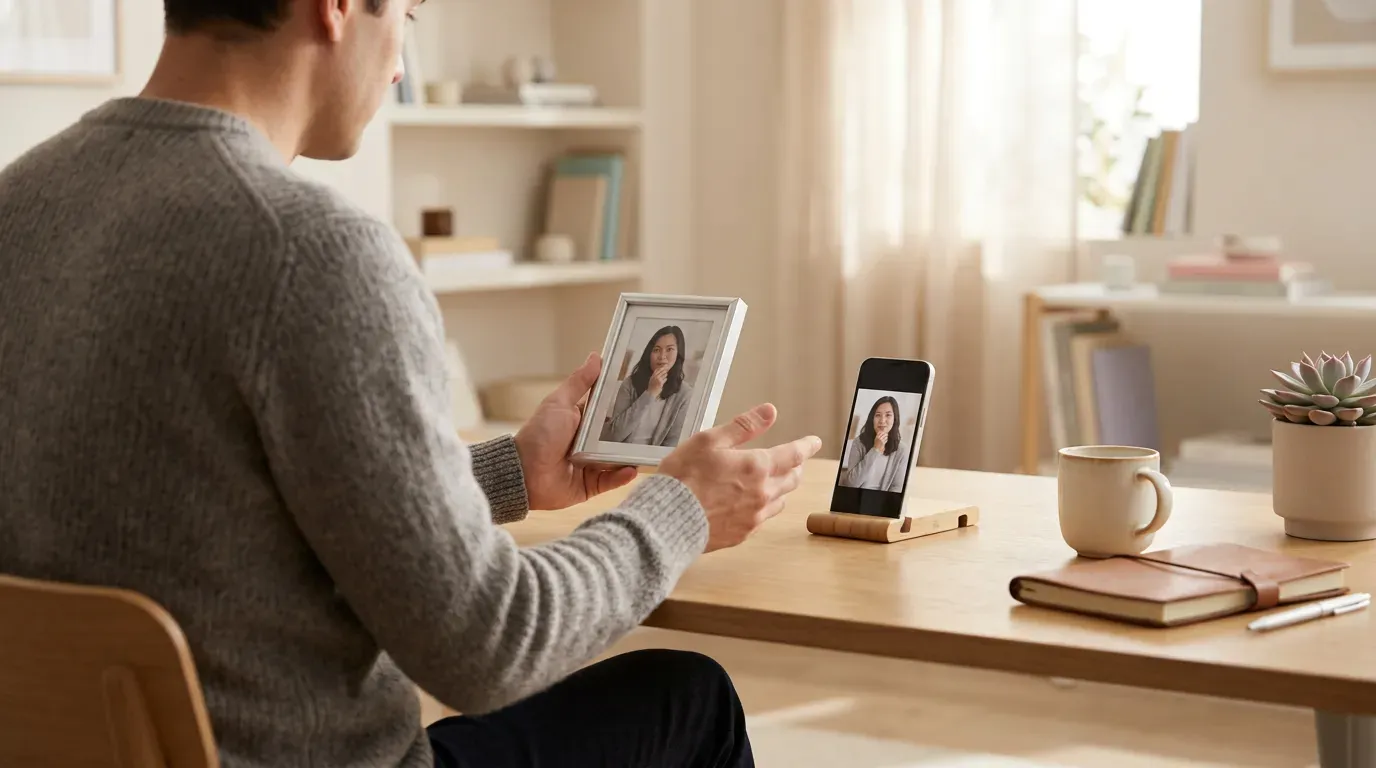
Play the clip muted and watch only the face. A pass is a mouth that opens and closes at a steady rhythm, with eyes and head that neither freeze nor jump. If the face stays rigid while the lips move, use a photo with the head square to the camera, the mouth fully visible and nothing near the chin.
-
Play it again with sound at normal volume and listen for any gap between what you hear and what the lips do. A pass is voice and mouth that feel like one event. If the lips seem late, trim the silence from the start of the audio file and render again.
-
Scrub frame by frame through three or four plosives, the p, b and m sounds in your line, such as “maybe” or “problem”. A pass is lips that close on the frame where the sound lands. If the mouth stays open, slow the delivery or record the line with clearer consonants.
-
Compare the start and the end against the audio. The first word should land as the mouth opens, and the last word should finish as the mouth settles. If the mouth falls out of step late in the clip, shorten the line or split it into two clips.
-
Watch the clip full-screen on your phone in 9:16. A pass is captions you can read at arm’s length that sit clear of the buttons, handle and caption text each platform draws over the video. If they’re covered, move them up in the editor and check again.
-
Read your on-screen text and post caption. A pass is a clip that isn’t framed as a customer review, with the AI-generated content label switched on in the posting screen.
When a check fails, change one input before you render again: the photo, the length of the line, or the audio. Changing one at a time shows you which one fixed the problem.
Frequently asked questions#
How do I make a photo talk?#
Give a lip-sync tool one front-facing portrait with a visible mouth and one voice track, either your own recording or typed text turned into speech. Watch the result muted and with sound, then export it in 9:16 for TikTok, Reels or Shorts.
Can I make a photo of a relative talk?#
Make a relative’s photo talk only after they agree, or after the family agrees if the person has died. Tell them the exact line the photo will say before you render it. When you post, apply the platform’s AI label, because the face movement and voice are generated.
Do I have to label a talking photo as AI-generated?#
Label it, because the platforms ask for disclosure of realistic AI content. TikTok has an AI-generated content label, and YouTube asks creators to disclose altered or synthetic content that seems realistic. For Instagram and Facebook, set Meta’s AI label at upload.
Can I use a talking photo as a customer review?#
Don’t present a talking photo as a customer review, because a generated person isn’t a customer. The FTC rule at 16 CFR Part 465 covers fake or false consumer reviews and consumer testimonials. Use the clip as a labeled spokesperson, and collect real customer footage, with consent, for testimonials.
Make your first talking photo this week#
Your first talking photo needs one photo that passes the checklist and one line that has already held viewers as a Wall of text post. Choose both today.
This week, run the photo and the line through Lipsync, then work through the six checks. Post the 9:16 clip with captions, a hook in the first sentence and the AI label switched on.
After that, open the Publish Calendar and schedule your next clips, one portrait and one line at a time.
Ready to make a photo talk on your own account? Make your first video. Credits never expire. Top up from $5 (pricing).
Sources#
TikTok: new labels for disclosing AI-generated content · YouTube Help: disclosing altered or synthetic content · 16 CFR Part 465: consumer reviews and testimonials