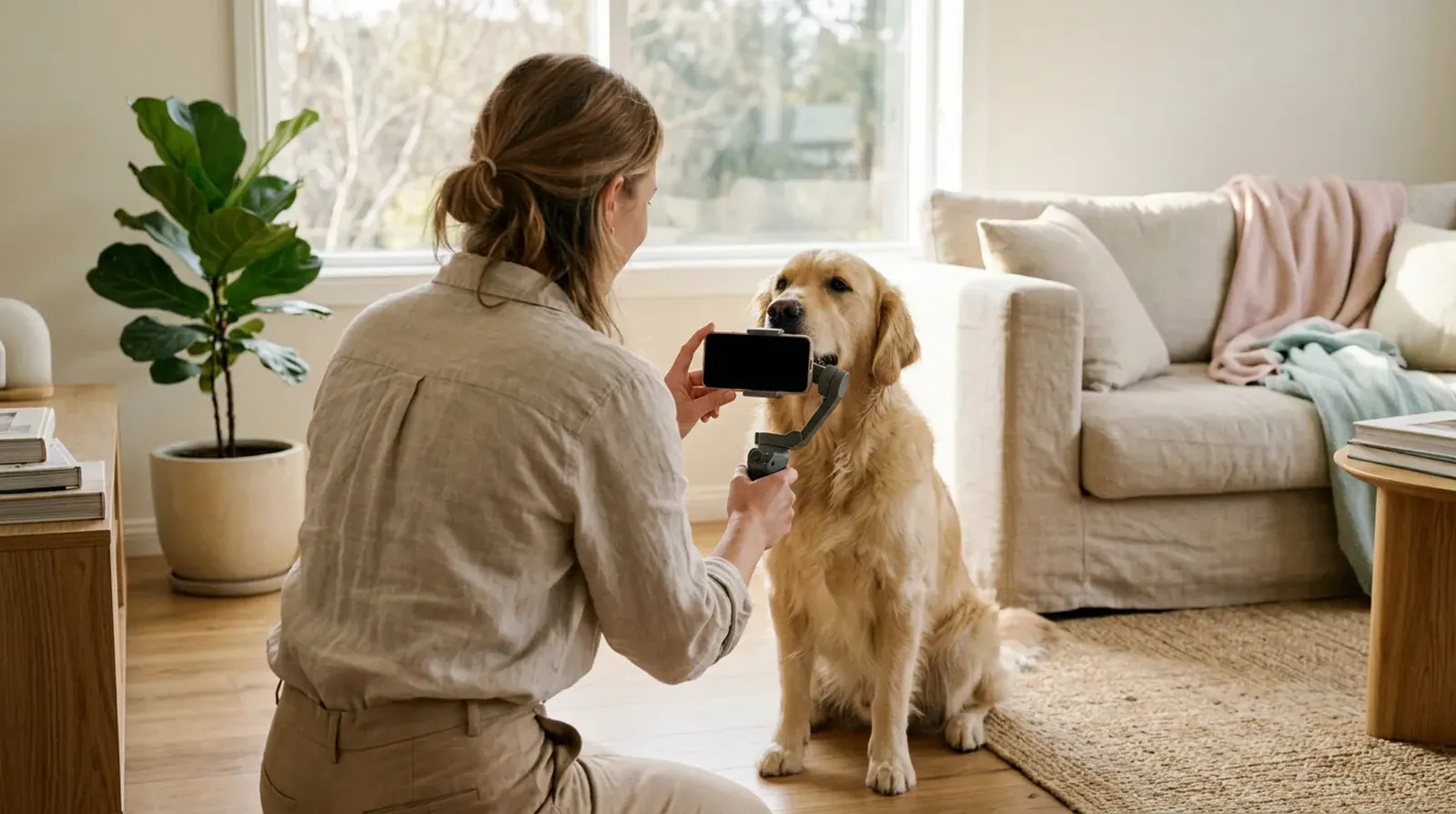
An AI talking animal clip is made by animating a photo with lip sync or by generating the animal from a text prompt: use a photo for a real pet and a prompt for an invented animal. The workflow is a clear front-facing image, a 25-word line for 10 seconds, a generated voice, lip sync, word-timed captions and a 9:16 export. Platform AI label rules and rights rules apply to every clip.
You have one clear photo of your pet, or an idea for a mascot animal for your small shop, and you want a 10 to 15 second vertical clip where it talks. An AI talking animal clip for TikTok, Reels or Shorts needs a few choices before you generate anything.
By the end, you can pick a method, write a line timed to the clip, build it, label it and check it before it goes live.
Key takeaways#
- At a rule-of-thumb 150 words per minute, a 15 second clip holds about 37 words.
- A generated animal voice isn’t your pet’s real voice, and a generated animal is never a real customer.
- TikTok, Instagram and YouTube each set their own AI-label wording, so check each help center.
- A text-only version of the joke uses no AI media, so testing it costs only the writing.
What do you need before you make an AI talking animal video?#
Before you make an AI talking animal video, you need a photo or a prompt, one timed line, a voice, the rights to every input and a credit balance. The clip itself is a short video where an animal’s mouth moves in time with generated speech.
You make it one of two ways: animate a still photo of a real pet with lip sync, or generate the animal and its movement from a text prompt. Photo lip sync keeps your pet’s look. Prompts suit invented animals.
Have these ready before you start:
- A clear, front-facing photo of the animal, or a prompt that describes it.
- One line to say, about 25 words for a 10 second clip.
- A voice: a generated one, or audio you record or license.
- Rights to everything you upload: the photo, any voice or audio, and any music. Read each platform’s own terms for what it allows.
- A credit balance, and time for a second attempt if the first render looks wrong.
Brand mascots and ads carry extra rules on disclosure and endorsements.
Pick the method#
| Photo lip sync | Text-to-video | |
|---|---|---|
| Animal | Your real pet or existing artwork | An animal that doesn’t exist |
| Scene | Fixed face, a talking portrait | The animal moves around the scene |
| You supply | Photo and audio | A prompt |
Use photo lip sync when you want your own pet or an existing picture. Use text-to-video when the animal doesn’t exist or needs to move through the scene.
Looptake’s Lipsync tool takes one portrait and one voice track and makes the face say it. Choose it when the words must be exact or the voice must be a specific one, such as a voice actor or a brand voice.
With a text-to-video model, one run produces the speech and the mouth movement together. Veo 3.1 and Seedance 2.5 carry the dialogue tag in the Looptake model catalog.
With one cat photo, the two routes split like this. In Lipsync, you upload the photo with a recorded line, and the cat’s face says it. On the prompt route, you describe the cat, and a dialogue-tagged video model generates the cat, the movement and the speech.
The first route keeps the cat you own. The second gives you a cat that can walk to the bowl.
What drives the cost#
The Looptake FAQ says every model call (clips, images, voice, music and avatars) uses credits, and so does writing by a language model.
Scheduling, posting and editing use none, and a failed job costs nothing because its credits go back to the balance.
Looptake’s pricing page states the rule: “You see the price before you run, and a failed run costs nothing.” Credits never expire.
How to make an AI talking animal video: step by step#
Making an AI talking animal video takes eight steps, and Looptake’s lab tools cover the build steps as one chain. For a cat, each tool takes one input and returns one output:
- Image: a prompt such as “a fluffy grey British shorthair facing the camera on a kitchen counter” goes in, a still of the animal comes out.
- Speech: a 25-word line goes in, an audio file comes out.
- Lipsync (talking photo): the still and the audio go in, a clip of the face saying your audio comes out.
- Caption: that clip goes in, the same clip with word-timed captions comes out.
- Reframe: the captioned clip goes in, a 9:16 version comes out.
You can run the chain yourself: Make your first video.
-
Test the joke as text first. Write the line in Wall of text, Slideshow or Green screen meme before you generate any AI media. You’re ready when the line still works as plain text. Then pick one of the two formats that carry most talking animal clips:
- The vlog: the animal talks to the camera like a creator, framed like a phone vlog propped on a counter (“Hi besties. Today I’m…”), then does its real habit. A cat pushes things off tables. A raccoon steals.
- The street interview: a microphone enters the frame and an off-camera voice asks, “Have you ever stolen someone’s chips?” The animal dodges (“Define… stolen.”) and then proves it. Looptake’s Interview clip format fits this one.
-
Pick or make the photo. Use a sharp, evenly lit photo with one animal, the face fully visible and facing the camera, eyes and mouth uncovered. With no photo, generate the animal in the Image lab tool from a prompt. The post on which photos make a photo talk covers the rest. It worked when you can see both eyes and the mouth at phone size.
-
Write the line to a time budget. At a rule-of-thumb 150 words per minute you speak 2.5 words a second, so 10 seconds is about 25 words and 15 seconds is about 37 words. Build three beats: a hook in the first 2 seconds, a turn that reverses expectations, and a punchline as the last line. For hooks, see the viral content principles.
- Cat: “You closed the bedroom door. Again.” / “I let you live here, but there are rules.” / “You’re staff.” The hook names one specific complaint, the turn flips who is in charge, and the punchline is three words.
- Dog: “I heard the fridge open.” / “You said it was for you.” / “I’m not angry. I’m filing it under owed.” The hook is a sound the owner knows, the turn is an accusation, and the punchline raises the stakes calmly.
- Shop mascot, a hedgehog for a candle shop: “Don’t light that candle yet.” / “Trim the wick first.” / “I’m a hedgehog, and even I know that.” The hook is an instruction, the turn is the useful tip, and the punchline gives the mascot a voice.
-
Choose the voice in the Speech lab tool, using ElevenLabs Eleven v3 or v4. Set pace, age and tone to suit the animal, then play the audio before you animate. A bad read is cheaper to redo than a bad clip.
-
Animate with Lipsync (talking photo). Upload the photo and the audio. It worked when the mouth follows the words for the full audio length.
For the prompt method, use a video model from text instead and put the line in quotes with how it sounds: The seagull looks into the camera, its beak moving with each word, and says in a raspy, shifty voice: ‘Define… stolen.’
Name the mouth, or the model may give you the voice and a still face. Name a voice that contrasts with the animal, and keep the animal real with a breed and a detail, such as a big seagull on the boardwalk railing. An 8-second clip has room for one line under 12 words and the payoff.
-
Add captions with the Caption lab tool. Keep lines short, and check the preview for captions hidden under the buttons and text the app draws over the video. It worked when each word appears as it’s spoken.
-
Export with Reframe at 9:16. Check each platform’s help center for its current maximum length and recommended aspect ratio before you post, and add the AI-content label where the platform asks for one. It worked when the face sits inside the frame with room above the captions.
-
Make it a character. Keep one animal, one voice and one running joke across posts. Use the Influencer lab tool to keep the same face in every post, reuse the same voice choice, and set a fixed schedule with Calendar or Automations. The page on reusable AI avatars shows the setup. A brand can run a mascot animal that explains a product as a repeatable format.
What are the common mistakes with AI talking animal videos, and how do you avoid them?#
The common mistakes with AI talking animal videos are craft, rights and labeling errors, and each has a fix you can apply before you post.
-
The photo faces away or the mouth is covered. Lip sync needs a visible mouth to move. Use a photo where the face looks at the camera and nothing hides the mouth, then check the first frame before you generate. The guide to which photos work for a talking clip has more examples.
-
The line runs past the time budget. At a rule-of-thumb 150 words per minute, 10 seconds holds about 25 words (150 x 10 / 60). Count the words and cut until the line fits, or the voice speeds up to catch the clip length.
-
The first 2 seconds have no hook. Open with the complaint or the surprise, such as “I saw what you did with the last of the tuna.” Save the setup for later.
-
The captions sit under platform buttons. TikTok, Reels and Shorts draw the username, caption text and action buttons over the lower part of the frame. Move captions toward the middle and preview the clip on the post screen before you publish.
-
The clip isn’t exported at 9:16. Run it through Reframe in the Looptake lab and pick 9:16. You should see a full-screen vertical preview with no bars at the top or bottom.
-
The photo, voice clip or music belongs to someone else. Use a photo of your own pet, a generated voice, or audio you have the rights to use. A clip that sells or promotes a product is commercial use, so read the terms of the generation tool and the music license for every input before you post it as an ad.
-
The voice is passed off as the pet’s. A generated voice is not your pet’s voice. If the clip could read as real, write “AI voice” in the caption.
-
The AI-content label is skipped. TikTok, Instagram and Facebook (Meta), and YouTube each publish Help Center rules on labeling AI-generated or altered content. Open each page on your own account and read when a label is required, including whether clearly animated or unrealistic content needs one. Then apply the label in the upload screen.
-
A generated animal is shown as a customer or reviewer. Never present a generated animal or person as a real customer, reviewer or testimonial. The FTC’s Guides Concerning the Use of Endorsements and Testimonials in Advertising are at 16 CFR Part 255, and its rule on consumer reviews and testimonials is at 16 CFR Part 465.
-
A brand mascot looks like a real buyer. Frame the animal as your mascot, for example “Meet Biscuit, our shop mascot,” and let it explain the product rather than review it. Read the ad policies of the platform where you run the ad before you spend on it.
How to check that your talking animal clip is ready to post#
You check that a talking animal clip is ready to post by running six pass or fail checks on the finished file, then queueing it. Keep the file open while you work.
- Play the clip with the sound off. It passes when the captions carry the joke on their own and every word sits inside the visible frame, away from the edges. If words are cut off, redo the Caption step.
- Count the words in the spoken line: about 25 for 10 seconds and 37 for 15. It passes when the audio ends before the clip does. If the last word hits the final frame, shorten the line and regenerate it in Speech.
- Watch the mouth for the full length. It passes when the lips stay with the voice through the last word. If they drift, redo only the Lipsync step. Looptake’s FAQ says a failed job costs nothing and its credits go back to the balance.
- Confirm the file is 9:16 and under the maximum length in the TikTok, Instagram and YouTube help centers. It passes when the clip fills a vertical screen with no bars. Paste your caption text into the Caption length checker, one of the free tools on Looptake.
- Open the label setting in the app you’re posting to and apply it according to the help-center rule you read. It passes when the label shows on the post preview. If the clip could read as real, add a caption line such as “Voice is AI-generated.”
- Confirm you hold the rights to the photo, the voice and the music. It passes when you can name where each came from and what permits your use, and the animal appears as a mascot, never as a customer.
Once the series format is settled, queue the clip in Calendar and set a repeat in Automations.
Frequently asked questions#
Can I make my own pet talk with AI?#
Yes: use a clear photo where your pet faces the camera with its face fully visible, write a line of about 25 words for a 10 second clip, add a voice, and run it through a lip-sync tool. The voice is generated, so it isn’t your pet’s real voice. Caption the clip and export 9:16.
Do I have to label an AI talking animal video?#
Labeling rules differ by platform, so read the AI-content section of the help center for TikTok, Instagram and YouTube before you post. Check the rule again each time you add a second app, since a setting on one may not exist on another.
How much does a talking animal clip cost?#
A clip costs what its parts cost: the model calls for the image, voice and lip sync, plus the writing of the line. Looptake’s pricing page gives the rule: “You see the price before you run, and a failed run costs nothing.” A failed job costs nothing.
Can I use a talking animal in an ad for my shop?#
A brand mascot works in an ad when you frame it as a mascot that explains your product. Never present a generated animal as a real customer or a testimonial. Make sure you own the rights to every photo, voice and audio file you upload.
Next steps: make your first talking animal clip#
Today, pick one animal, write a 25-word line, and build it as a text-only video in Wall of text or Slideshow. Watch it with the sound off, and move on when the joke reads clearly on screen.
This week, build the clip with the chain: Image for the animal, Speech for the voice, Lipsync to animate, Caption for word-timed captions, Reframe to 9:16. Run the six pass or fail checks on the finished file, and switch on the AI-content label where TikTok, Instagram or YouTube asks for it.
Over the next weeks, keep the same animal, the same voice and the same running joke. Queue posts in Calendar or set up Automations so the schedule stays fixed. For more ways to make a line surprising, see the guide to twist ideas for AI videos.
Your first AI talking animal clip needs one animal and one 25-word line. Make your first video.
Sources#
16 CFR Part 255: endorsement guides · 16 CFR Part 465: consumer reviews and testimonials